Is your album private?
Not by default. A new album is public: anyone who has its link or QR code can view the approved photos, videos and voice messages. Albums aren’t listed or searchable anywhere on QR Album, so an album travels exactly as far as its link does.
3 settings under Album → Sharing decide who sees it: turn “Album link” off, add an album password, or keep guest downloads off. Review-first, on the event’s Moderation page, decides what appears in the first place.
What public means here
Public means that anyone holding the link can open the album. There’s no directory of albums, no search, and nothing that invites a stranger in, so in practice the album reaches the people you sent the link to and the people they forward it to.
That trade-off is what makes it work at a party: nobody has to sign up, and a forwarded text just works. If you post the link somewhere public, like a social media profile, treat the album as public in the full sense.
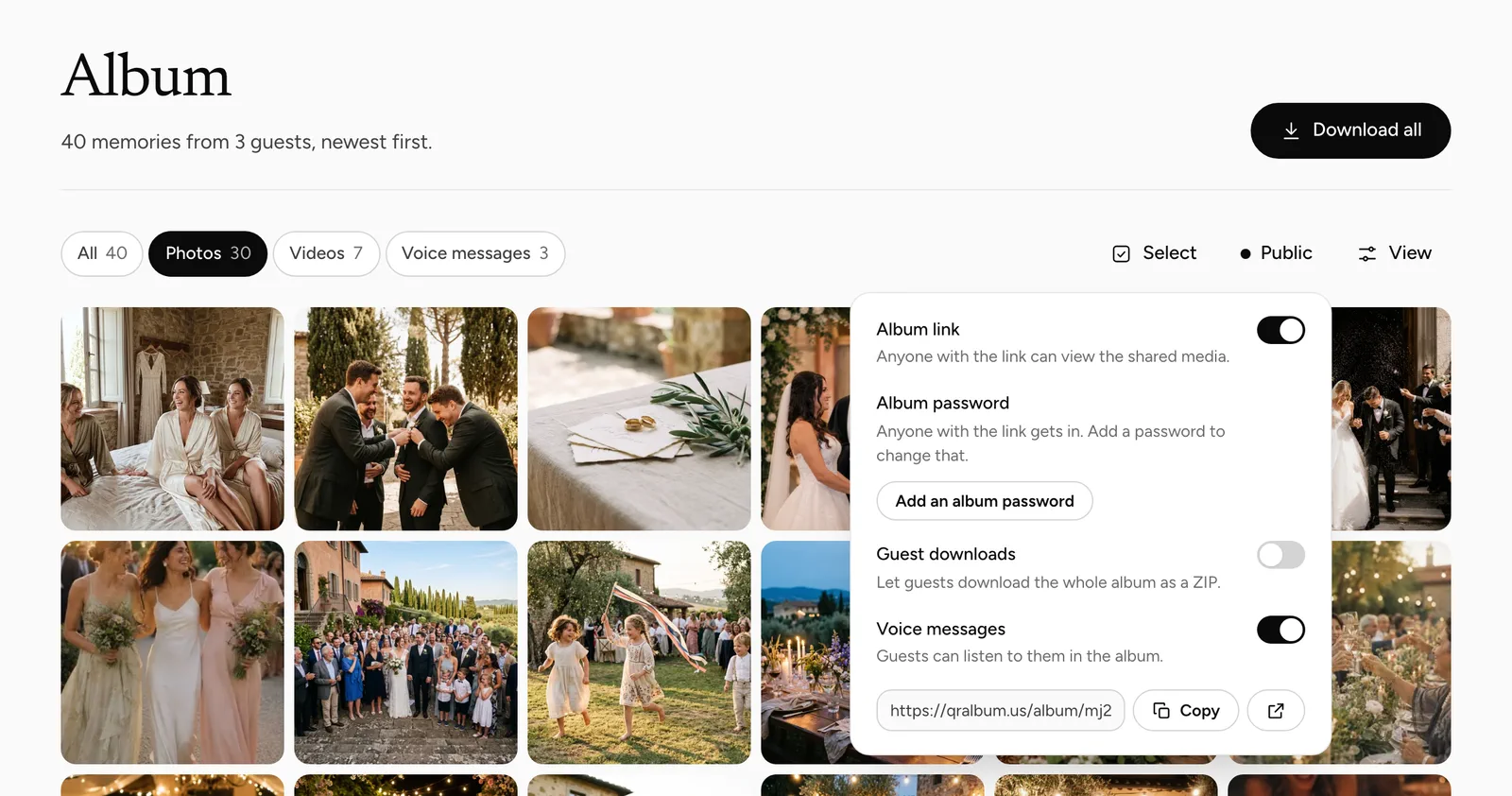
- Open Album → Sharing. In the album, click “Public” above the photos. The settings for who can view and who can download sit together there.
- Choose who can view. Leave the album public, add an album password of at least 4 characters, or switch “Album link” off.
- Decide on downloads. Guest downloads stay off until you turn them on, and they can have a password of their own.
- Test it as a guest. Open the link in a private browser window before you send it to anyone.
How hard the link is to guess
The standard album link ends in a code of 8 random characters — more than 4 billion combinations — and the number of requests one connection can make per minute is capped. Guessing your way into someone else’s album isn’t a realistic route.
A short link you choose yourself is different. Something like your names is easy to guess, so if you pick one, add an album password too.
Which settings control who sees the photos?
4 settings, 3 of them under Album → Sharing. They answer different questions — who can look, who can keep a copy, and what shows up at all — so you can combine them freely or use none of them.
None of them changes what you see. In the dashboard you always have every upload, including hidden ones and ones still waiting for review.
| Setting | Where | What it does | Default |
|---|---|---|---|
| Album link | Album → Sharing | Off: the link shows nothing at all | On |
| Album password | Album → Sharing | Viewers and the live wall must enter it | None |
| Guest downloads | Album → Sharing | Download buttons and ZIP for guests, paid plans only | Off |
| Review first | Moderation (event menu) | Nothing appears until you approve it | Off |
Who can view, who can download, and what appears are 3 separate decisions.
The album password
It needs at least 4 characters and covers the album page and the live wall alike, because both open from the same code that’s printed on your table cards. A guest types it once, and that phone or computer stays signed in for 12 hours.
You can change or remove it at any time. Send it in the same text as the link — a second message is the one that gets lost.
What a guest sees
Uploads that are approved, done processing, and not hidden. Anything in the review queue and anything you removed with “Hide from album” stays out, so the guest album is always a subset of your dashboard.
A name shows up only where a guest typed one, and guests aren’t asked unless you turn on “Ask for a name.” The album doesn’t reveal which pictures came from the same person. Likes and comments are visible to everyone who can open it.
Viewing is not the same as protected
With guest downloads off, there’s no download button and no ZIP. That doesn’t make a picture uncopyable: anyone who can open the album can take a screenshot or save a photo they’re viewing full size, just like on any web page.
So decide who can view before the link goes out. A picture that must not leave the album should be hidden, and an album meant for a small circle belongs behind a password.
Closing it after the event
Download everything first, then turn “Album link” off: the link stops showing anything, and you can turn it back on later. Archiving the event is a separate step. It shuts the upload page and stops new uploads right away but leaves the album viewable, and it can’t be undone from the dashboard.
Deleting the event removes the media, QR codes, and guest links for good. For a private party, leaving the album public until the end of its storage period is a perfectly reasonable choice.
Common questions
Is the album private by default?
No. It’s public: anyone with the link can see the approved uploads until you add a password or turn the album off.
Can strangers find my album?
Not through QR Album — there’s no list and no search. Anyone who is given the link can open it.
Can I protect the album with a password?
Yes. Under Album → Sharing, choose “Add an album password.” It needs at least 4 characters and applies to the live wall too.
Can guests download from a public album?
Only if you turn guest downloads on, which requires a paid plan. They can still screenshot what they see.
Does archiving the event hide the album?
No. Archiving stops uploads; the album stays viewable until you turn “Album link” off.
Review uploads before they appear
Decide what reaches the album and the live wall.
Let guests download, with a password
What guests get when you open downloads.
How your event media is protected
What sits behind the link.
A guest album for a wedding
Open to the people you invited, closed afterward.
You want it tighter than this
Tell us who should and shouldn’t see the album. We’ll tell you which combination of settings does that.